


Open Camera
4.07.70K Reviews
App Specs
- Version
- 1.56.2
- Updated On
- License
- Free
- Downloads
- 100,000,000+
- Developer
- Mark Harman
- Categories
- Photography
- Platform
- Android
Screenshots
 Analysis by AppCompare
When I use a phone camera, I want the important controls to be easy to find before a moment passes, but I also want room to adjust a shot when the default result is not right. Open Camera is a free Android photography app by Mark Harman that gives me that mix of direct capture and hands-on control. It is open source, has an Everyone age rating, and its 4.0 average from around 286,000 ratings suggests it has found a substantial audience. I see it as a practical alternative to relying only on a phone’s built-in camera, especially for people who like to understand what their camera is doing.
Using the camera in everyday situations
I use this section to consider what happens when a photo needs a little planning rather than a quick tap. Thinking through ordinary situations—like setting up a group shot or keeping a visual record—shows where Open Camera’s extra controls can make the process more manageable, and where a quick test beforehand can save time.
Readability and navigation
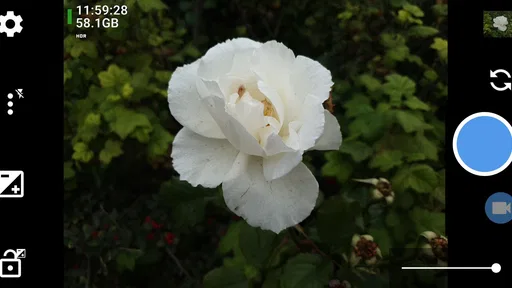
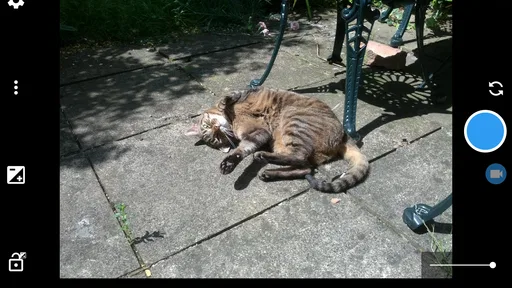
The main camera view is the place I spend most of my time, so clear access to the shutter, focus and exposure matters more than a polished welcome screen. Open Camera puts core controls on that screen and keeps additional options available when I need them. That arrangement suits someone who wants to frame and shoot quickly, while still making adjustments without leaving the camera view. The trade-off is that a screen with many controls can feel busier than a phone maker’s simplified default camera, particularly if you only want to take an occasional snapshot.
For a first outing, I would leave the advanced settings alone and learn the visible controls one at a time. Once the basic layout feels familiar, I would explore less-used options at home rather than while a child is making a funny face or a train is pulling in. This small habit makes the app easier to approach: it separates learning the interface from trying to capture something that will not wait.
Motor and sensory considerations
Open Camera gives you ways to change how you operate the camera, including assigning volume keys to shutter release or zoom. That can be useful when holding the phone in an awkward position, wearing gloves, or trying to keep a two-handed grip steady. It is not a substitute for every accessibility preference, and the usefulness of a physical button depends on the phone and the way you hold it, but it is a meaningful choice for people who find tapping a small on-screen shutter uncomfortable.
Exposure adjustment and focus controls can also help when the camera’s automatic choices do not match what you see. In a dim room, for example, I can take time to refine the image rather than repeatedly tapping the shutter and hoping for a better result. The flip side is that manual adjustments ask for attention and can make capture slower. If menus, small controls or visual changes are difficult for you to track, the simpler camera already installed on your phone may be the more comfortable everyday option.
Situational access: the shot matters more than the menu
Imagine I am at a family gathering and want a group photo without asking someone else to take it. I can set the phone on a stable surface or tripod, frame everyone, and use the timer rather than rushing back into place. For a more involved setup, the app’s remote-control option can let another device trigger the camera. I would test the arrangement before the gathering, since pairing and framing are not things I want to troubleshoot while everyone is waiting.
Worth Reading Before You Choose

Baby Panda World Brings Quick Play to Modern Phones, but Its Game Library Feels Busy

ESPN’s Live Game View Makes Following Close Games Easier

QuizzLand Review: A Good Fit for Short Trivia Breaks, Not Every Player

Basketball Stars: Multiplayer Is Fast, but Can It Recover When Matches Go Wrong?

WEBTOON Turns Phone Updates Into a Better Reading Routine

Link to Windows Runs on Shared Habits, Not Social Feeds
The same deliberate approach helps with scenes that challenge automatic exposure: a bright window behind a person, a pale object on a dark table, or a sign that needs to remain legible. I can adjust exposure and focus, take a test shot, and check the result before moving on. This is not a guarantee that every phone sensor will capture the scene as I imagine it; the app controls the camera hardware available on that device. Still, having a way to intervene is valuable when the default image is consistently too bright, too dark or focused on the wrong subject.
Where its flexibility pays off
Open Camera is especially useful for people who take more than casual snapshots: anyone documenting a repair, keeping visual notes for a project, photographing products for a small listing, or learning how ISO, white balance and shutter speed affect an image. The benefit is not that every picture becomes professional. It is that you can make deliberate choices, repeat a setup, and learn from the difference between settings instead of treating the camera as a black box.
One practical workflow is to choose a consistent framing and exposure for a series of reference photos, then avoid changing settings between shots unless the light changes. That can make before-and-after pictures of a room or a craft project easier to compare. For moving subjects, though, a complicated manual setup may work against you: if the moment is brief, automatic capture is often the better first move, with experimentation left for scenes that will stay put.
How it compares with a phone’s default camera
The usual built-in camera is often the easier choice for quick portraits, social sharing and features closely tied to a particular phone. It may offer a more guided experience and make it simpler to move from capture to the manufacturer’s preferred editing or sharing tools. Open Camera’s appeal is different: it gives more room to adjust capture settings and customize controls, without charging for the app. If you rarely change anything beyond zoom, the default camera may serve you better; if you want to make the phone behave more like a configurable camera, this one is worth trying.
There is also a useful distinction between flexibility and universal compatibility. Manual options and video settings depend on what the phone’s camera hardware and Android version support, so I would check the controls on the device I plan to use rather than assume every phone exposes the same choices. The current version is 1.56.2, and the minimum Android requirement is 6.0. That makes it relevant to a wide range of Android devices, but device-specific behavior still matters more than the version number when judging how a particular feature will work.
Remaining barriers and sensible workarounds
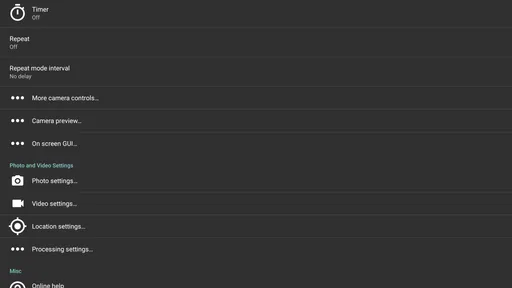
A flexible camera can ask more of its user than a simple one. Settings are useful only if I can find and understand them, and a control that stays on screen can compete with the subject for space and attention. I would customize only the options I actually use, and keep a familiar basic setup for everyday shooting. That limits menu searching and reduces the chance of changing a setting accidentally when I meant to take a picture.
Video is another area where expectations need to be practical. Open Camera offers adjustable recording choices, but resolution, frame rate and stabilization results depend on the phone. A high-resolution option is not automatically the right setting: it can create larger files and may be unnecessary for a short clip sent to family. For a quick video, I would choose a setting that suits how I plan to watch or share it, then make a brief test recording to check framing and sound before an important moment.
People who want an iPhone camera app should note that Open Camera is an Android app, not a cross-platform choice. Likewise, anyone who expects automatic retouching, a highly guided portrait workflow or the exact look of a phone manufacturer’s camera should start with the built-in option. I would choose Open Camera for control and customization, not because it promises to make every capture effortless.
A grounded recommendation
With more than 100 million installs, a free price and an Everyone content rating, Open Camera is easy to try if you are curious about taking greater control of your Android photography. Its popularity is encouraging, but the right test is personal: open it on your own phone, take a few ordinary photos, and see whether the controls make your choices clearer or just add friction. I would recommend it to curious beginners willing to experiment and to experienced users who want accessible manual adjustments. I would skip it if I value a stripped-down point-and-shoot screen above all else.
For me, its strongest inclusive quality is the number of ways it lets people adapt a capture workflow: direct on-screen controls, adjustable camera behavior and options for taking a shot without holding the phone in the usual way. Those choices can help in particular situations, though they do not make the interface equally comfortable for everyone. If you need a camera that does very little until you press the shutter, your phone’s default app may be kinder. If you want to learn, adjust and build a repeatable way of shooting, Open Camera is a capable free option to keep on hand.
Getting Started with Open Camera
First things first, downloading Open Camera is a breeze. It's available on the Google Play Store, and did I mention it's free? No hidden costs, no in-app purchases trying to nickel and dime you. Just pure, unadulterated, photography goodness. Once installed, the app welcomes you with a minimalist interface that's both inviting and functional.
User Interface and Navigation
Now, if you're worried about getting lost in a sea of buttons and menus, fear not. Open Camera's interface is refreshingly straightforward. The main screen features essential controls like shutter release, focus, and exposure adjustment. A quick swipe or tap reveals more advanced options, but nothing feels overwhelming. It’s like the app knows exactly what you need, right when you need it.
Features That Make It Stand Out
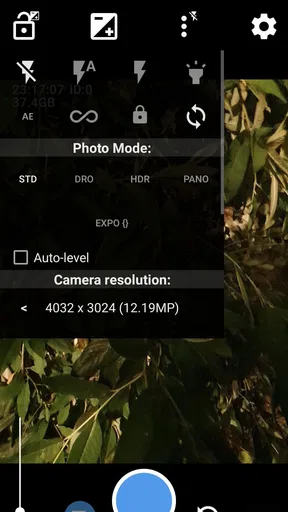
Okay, let's talk features because Open Camera is packed with them. One of my favorites is the manual controls. You can adjust ISO, white balance, and even shutter speed. For someone who loves experimenting with different lighting conditions, this is a game-changer.
Another nifty feature is the range of focus modes. Whether you’re capturing a sweeping landscape or a close-up of a bustling street, the app offers options like auto, macro, and even infinity focus. Plus, the face detection feature ensures your selfies are always on point.
If you're into video recording, Open Camera doesn't disappoint. It supports 4K video, and the stabilization feature is a lifesaver for shaky hands (guilty as charged!). You can also play around with frame rates and bit rates, which is more than what most free apps offer.
Customization and Flexibility
What really sets Open Camera apart is its flexibility. The app is highly customizable, letting you tweak settings to suit your personal style. You can change the volume keys to act as shutter buttons or zoom controls. There's even an option to add a timestamp to your photos if you're feeling nostalgic for those old-school film cameras.
And let’s not forget the handy remote control feature. You can set your phone on a tripod and use another device to control the camera remotely. Perfect for group shots or when you’re solo adventuring and want to capture the perfect moment without the selfie arm.
Performance and Reliability
In terms of performance, Open Camera is rock solid. I haven’t experienced any crashes or lagging, which is often a dealbreaker for many apps. The app is regularly updated, ensuring smooth operation and the latest features. It’s clear the developers are passionate about providing a top-notch experience.
Final Thoughts
So, is Open Camera worth your time? Absolutely. Whether you’re a seasoned photographer or just looking to spice up your Instagram game, this app offers a robust set of tools that rival even some paid options. The best part? It doesn’t cost a dime. So go ahead, give it a spin. You might just find yourself falling in love with photography all over again.
So, what are you waiting for? Head over to the Google Play Store and let Open Camera transform the way you capture the world around you. Happy shooting!
Pros
- User-friendly interface
- easy to navigate.
- Highly customizable settings for photography.
- Supports external microphones for audio.
- Open-source and regularly updated.
- Lightweight
- doesn't consume much space.
Cons
- No built-in editing tools for photos.
- Interface may seem outdated to some.
- Limited support for certain camera features.
- Occasional bugs with some devices.
- Not optimized for low-light conditions.
FAQs for Open Camera
What features does Open Camera offer?
Open Camera is packed with features that cater to both amateur and professional photographers. It includes manual controls for focus, exposure, ISO, and white balance, along with a variety of scene modes. The app also supports external microphones and offers geotagging, HDR, and panorama modes, making it a versatile choice for photography enthusiasts.
Is Open Camera compatible with all Android devices?
Open Camera is designed to work with a wide range of Android devices, but compatibility may vary depending on the specific hardware and Android version. While most modern devices will support the app, some older models might not offer full functionality. It's recommended to check the app's requirements and user reviews for your specific device before downloading.
How does Open Camera handle privacy concerns?
Open Camera respects user privacy by only requesting permissions necessary for its functionality, such as access to the camera and microphone. It does not collect personal data or track user activity, ensuring a secure experience. Users can review these permissions in their device settings to maintain control over their privacy.
Does Open Camera support video recording features?
Yes, Open Camera offers robust video recording capabilities, including adjustable frame rates, resolutions, and the ability to use external microphones for better audio quality. It also supports time-lapse and slow-motion video recording, providing users with comprehensive tools to capture high-quality video content.
Is Open Camera free to use, and are there any in-app purchases?
Open Camera is a free application with no hidden fees or in-app purchases. It is an open-source project, which means it is developed and maintained by contributors who prioritize providing a feature-rich experience without any cost to the user. This makes it an attractive option for those seeking a powerful yet free camera app.


